Draft an estimate with AI
Type the job the way you would say it to a helper and get estimate lines to start from. Nothing is saved or sent until you do it.
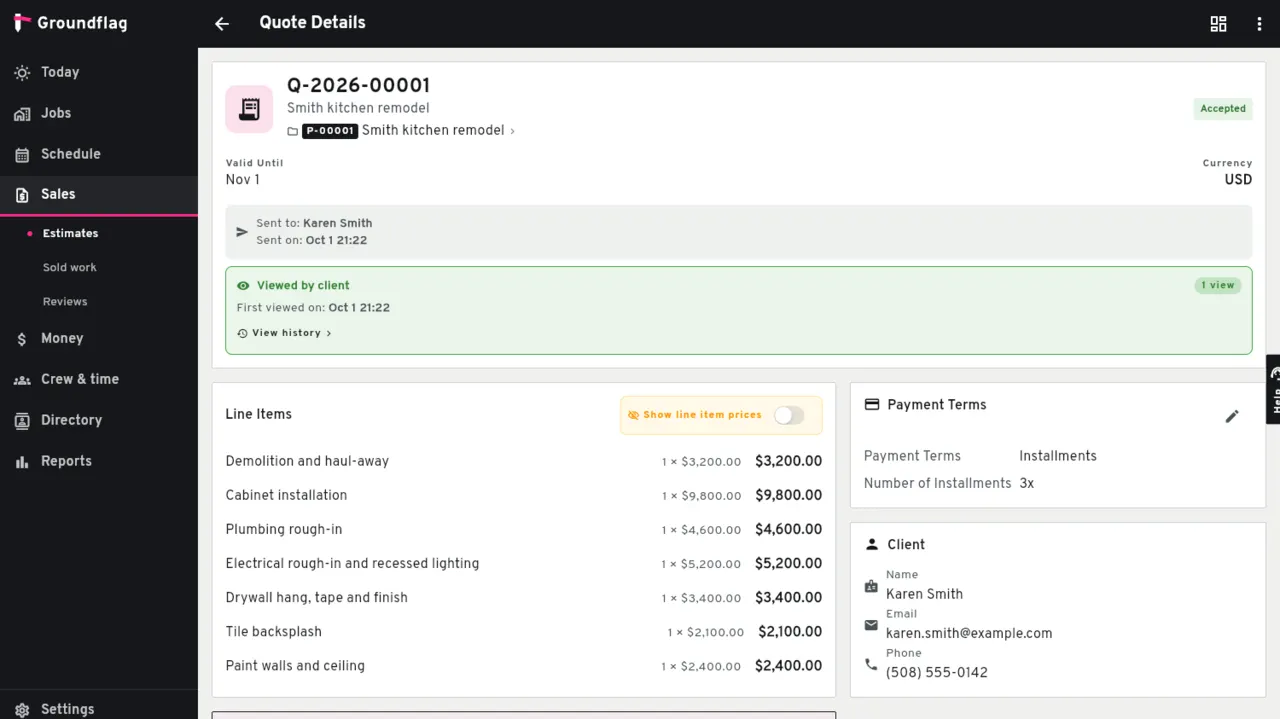
Open a new estimate.
Sales, Estimates, then the plus button. Pick the client and the job.
Tap Draft with AI.
It sits next to Use Template. The box starts with the job's name; describe the work in a sentence or more, for example: retile a 60 sq ft hall bath floor, remove old tile, new vanity and toilet.
Tap Draft the lines.
In a few seconds the lines fill the form, each with a type, unit, quantity and unit price.
Review every price before you send.
Change, add or delete lines like any other estimate, then save it as a draft or send it.
Where the prices come from
When a line matches an item in your price book, your price is used, never the AI's guess. Other prices are the AI's estimate for the work described; they are a starting point, not a quote from a supplier.
What it does not do
It does not save, send or sign anything. The client sees the estimate only after you send it.
Questions
Does it cost extra?
No. It is part of every plan and uses the plan's monthly AI allowance.
Can it write the estimate in Spanish or Portuguese?
Yes. The lines come back in the language you use the app in.
Keep reading
Questions? Write to hello@groundflag.com