Getting started with Groundflag
From sign-up to the first estimate in the client's inbox. You have 30 days free and no card is asked.
Sign up.
Go to app.groundflag.com and choose Start free, with your email or your Google account. Pick English, Spanish or Portuguese; you can change it any time.
Confirm your email.
Open the link we send. Until you do, you can set everything up, but invitations and anything sent to a client wait.
Set up the company.
One screen: company name, city and state, then Create company (Add more details takes the logo, phones and address now if you want). Next, What would you like to turn on? marks what you will use, and the last screen ends on Create my first estimate. Settings, Company, holds the rest: work hours, holidays, document numbering, templates.
Add a client and a job.
On Today, Needs you says Add your first client (and Create your first job after that) even if you hid Getting started — shops that stayed on Company or Settings used to see Nothing is waiting on you with zero clients. Or open Clients / Jobs and add the ones you want to quote. You can start on your own; inviting the crew is not required.
Load your trade catalog.
The setup tour asks What's your trade?: tap yours and its starter items load before your first estimate. Skipped it? Getting started says Load your trade catalog and opens Catalog. An empty list shows Add trades: pick electrician, tile, hardscape and the rest; starter items land ready to price. On New Estimate, Choose from catalog (Catalog on a phone) fills each line from those items, photo included.
Create the estimate.
On Today, Needs you names how many jobs still need an estimate and opens New Estimate on the oldest Lead or Estimating job without one. Or open Jobs: on the phone a banner says the same count; on a wider screen, Create estimate also sits on each of those job rows. Or open Sales, Estimates and tap Create estimate (once you have estimates, the plus button). When you have only one open job, its job and client are already filled in; otherwise pick them.
Add the work.
Type the scope and tap Draft with AI for draft lines (your price book prices win where they match), or add the work, quantities and your prices yourself. Keep the status as Draft and save.
Review, then send.
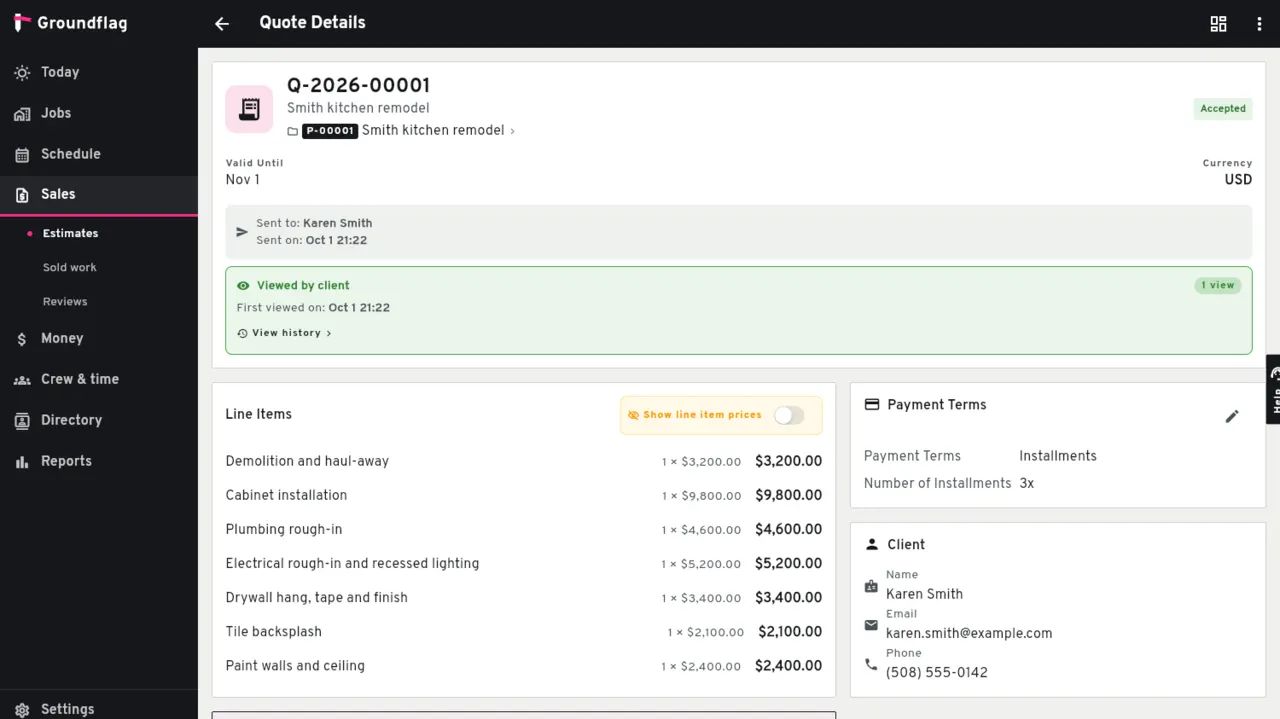
Check the client, line items, total and payment terms before sending. The client can review and accept the estimate online. Saving a draft does not send it.
What next
Invite your team when you are ready. Each person picks their own language, and there is no seat fee. Connect your payment account so clients can pay invoices by card (see Payments) and build the job's schedule. Have your data in another tool? Read Moving from Contractor Foreman.
Questions
I already have a job. Where do I create the estimate?
On Today, tap the Needs you line that says how many jobs still need an estimate. Or open Jobs: on the phone use that banner, on a wider screen use Create estimate on the job row, or open Sales, Estimates.
I set up the company but have no client yet. What should I tap?
Open Today. Needs you says Add your first client and opens New Client. After that it says Create your first job. Hiding Getting started does not clear those lines.
Do I need to invite the crew before making an estimate?
No. You can create the client, job and estimate yourself. Invite the crew when you want to share the job.
Does saving a draft send it to the client?
No. Keep the status as Draft while preparing it. Open the saved estimate, check the details and send it when you are ready.
Can I see my profit on an estimate?
Yes. In New Estimate, fill in Estimated cost (internal) with what the job should cost you. The screen then shows Estimated margin in dollars and percent. Only you see it: it never appears to the client or on the PDF.
What happens after 30 days?
We email you before the trial ends. To keep going, choose a plan in the app; if you do not, nothing is charged.
Keep reading
Questions? Write to hello@groundflag.com