Use Groundflag on the phone
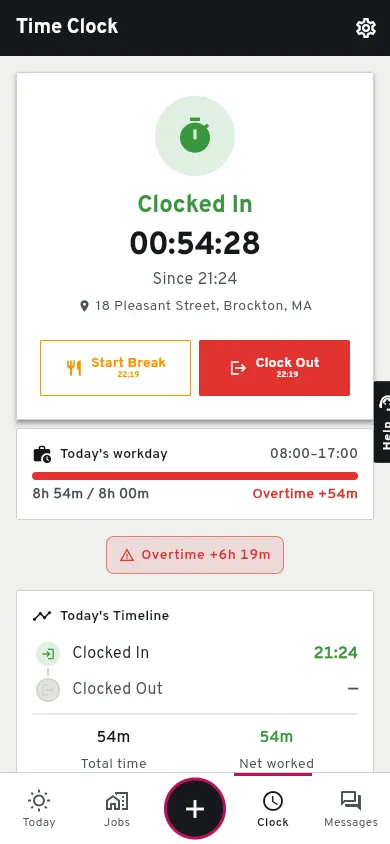
On Android, Groundflag is an app on Google Play; on iPhone it runs in the browser for now. Both have a bottom bar made for the field: Today, Jobs, Capture, Clock and Messages.
Android: install it from Google Play.
Search Groundflag on Google Play (Groundflag: Contractor App) and log in with the same account you use on the computer.
iPhone: add it to the home screen.
Open app.groundflag.com in Safari, log in, then Share, Add to Home Screen. It opens full screen, like an app.
Allow the camera.
The first time you take a photo (Capture, the daily log, the punch list) the phone asks; tap Allow, or While using the app.
Allow location and the microphone.
Location is shared with your company while the app is open (crew map) and goes on your time card when you clock in and out; the microphone is for the daily log by voice and Capture.
Tapped Don't Allow? Turn it back on
After a Don't Allow, the phone may stop asking. If Groundflag says camera or photo access is off, check the permission for the app or browser you are using, then return and try again.
Android: press and hold the Groundflag icon, tap App info, then Permissions. Tap Camera (or Location, or Microphone) and choose Allow only while using the app. Go back to Groundflag and try again.
iPhone: open Settings, Apps, Safari, then Camera (or Microphone, or Location) and choose Ask or Allow. Close Groundflag from the app switcher and open it again from the home screen.
Choose from Gallery uses the phone's photo picker where available. Access depends on your phone, system version and whether you use the app or the browser; choosing a file does not always require access to your whole library.
If photo access is denied in the Android app, open Groundflag's App info, then Permissions and Photos and videos (or Files and media on older phones), if listed. Allow the photos you want to share. With selected photos access, add the missing photo to your selection. Return to the same screen and try again; closing the picker without choosing a photo does not upload anything.
In the browser, check the browser's site settings for app.groundflag.com for camera or microphone access. To attach an existing photo, reopen the file picker and select the file. If it is missing, check the browser app's photo access in your phone settings. Labels vary by phone and version.
No signal
Groundflag needs a connection today, in the Android app and in the browser. Working with no signal is the February 2027 target.
Keep reading
Questions? Write to hello@groundflag.com